
Management UI
While Everruns is a headless agent platform designed for API-first integration, it provides an optional management UI for administrative tasks and session monitoring.
Overview
Section titled “Overview”The management UI is a Next.js application that provides:
- Agent management (create, edit, delete)
- Session monitoring and chat interface
- Capabilities browser
- Settings management (LLM providers, API keys, team members)
- Dashboard with system statistics
Access the UI at http://localhost:9300 when running locally.
Navigation
Section titled “Navigation”The sidebar provides access to main sections:
| Section | Description |
|---|---|
| Dashboard | Overview statistics and quick actions |
| Agents | List, create, and manage agents |
| Capabilities | Browse available capabilities |
| Settings | Configure providers, API keys, and team members |
Dashboard
Section titled “Dashboard”The dashboard provides an at-a-glance view of your system:
- Stats Cards: Total agents, active sessions, and other metrics
- Recent Agents: Quick access to recently created or updated agents
- Quick Actions: Shortcuts to create agents or browse the agent list
Agents
Section titled “Agents”Agent List
Section titled “Agent List”The agents page displays all agents in a card grid layout.
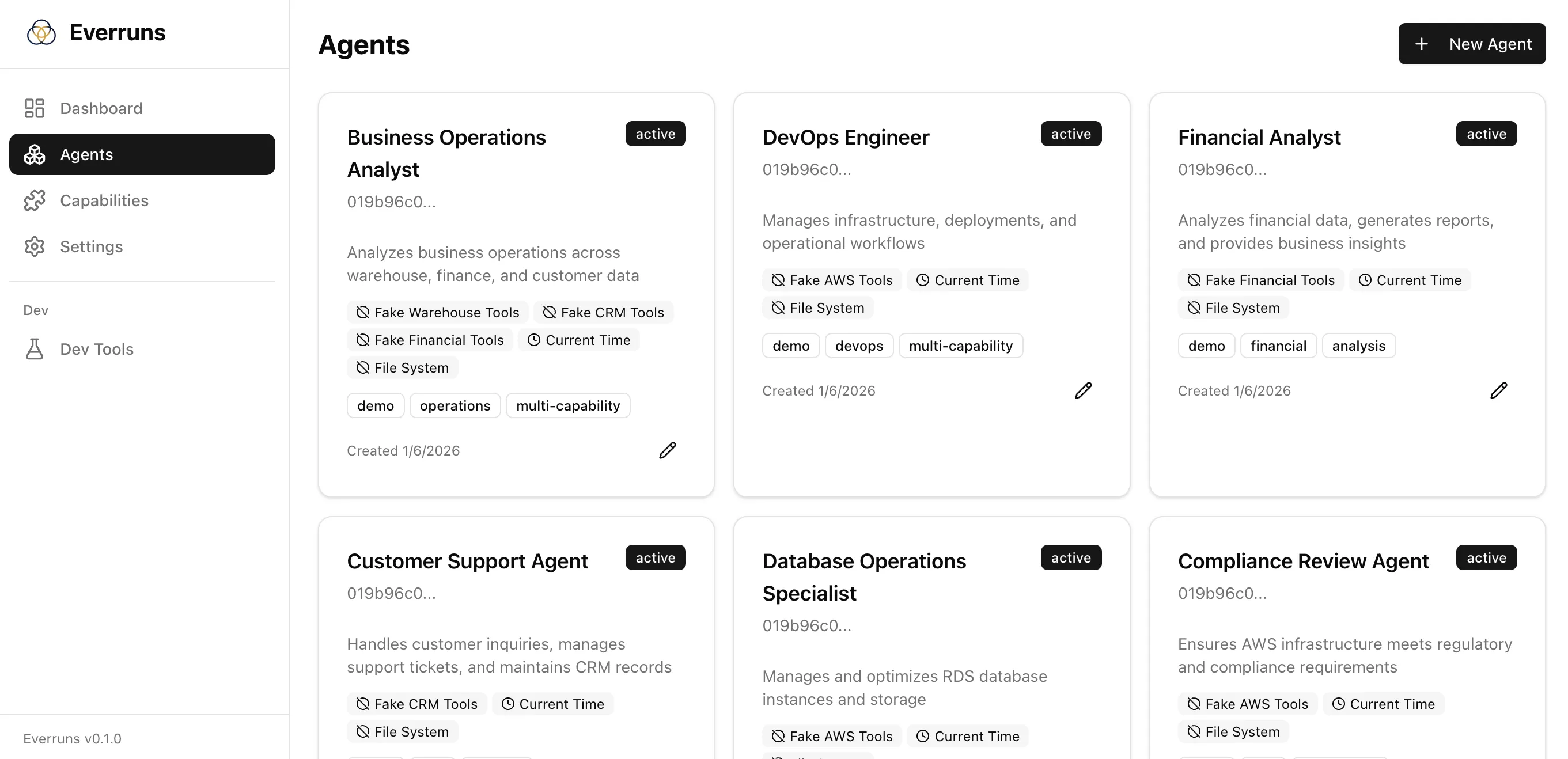
Each card shows:
- Agent name and status badge (active/inactive)
- Truncated ID
- Description preview
- Enabled capabilities with icons
- Tags
- Creation date
- Edit button
Click a card to view the agent details, or click the edit icon to modify the agent.
Agent Detail
Section titled “Agent Detail”The agent detail page shows:
- System Prompt: Full system prompt with markdown rendering
- Sessions List: All sessions for this agent with status indicators
- Capabilities: Enabled capabilities with descriptions
- Configuration: Default model, description, tags, timestamps
Actions available:
- Edit: Modify agent configuration
- New Session: Create a new conversation session
Create/Edit Agent
Section titled “Create/Edit Agent”The agent form allows you to configure:
- Name: Display name for the agent
- Description: Optional description
- System Prompt: Instructions for the agent (supports markdown)
- Default Model: LLM model to use for conversations
- Capabilities: Enable/disable available capabilities
- Tags: Organizational tags
Sessions
Section titled “Sessions”Session View
Section titled “Session View”Each session has three tabs:
Chat Tab
Section titled “Chat Tab”The primary interface for viewing and participating in conversations:
- Message history with user messages (dark bubbles) and agent responses
- Tool call visualization with expandable details
- Tool results displayed inline
- Message input with keyboard shortcuts (Enter to send, Shift+Enter for newline)
- Reasoning effort selector (for models that support extended thinking: Anthropic Claude, OpenAI GPT-5.x, o-series)
File System Tab
Section titled “File System Tab”Browse and manage files associated with the session’s sandboxed environment.
Events Tab
Section titled “Events Tab”View raw session events for debugging:
- Sequence number
- Event type (input.message, output.message.completed, tool.completed, etc.)
- Timestamp
- JSON data payload
Session Status
Section titled “Session Status”Sessions display their current status:
| Status | Badge | Description |
|---|---|---|
| started | Outline | Newly created, no messages yet |
| idle | Secondary | Ready for input |
| active | Primary | Currently processing |
Capabilities
Section titled “Capabilities”The capabilities page lists all available functionality modules:
- Summary Panel: Counts by status (available, coming soon, deprecated)
- Category Tags: Filter by capability type
- Capability Cards: Click to view details including tools and configuration
Each capability card shows:
- Icon and name
- Identifier (for API use)
- Status badge
- Description
- Category tag
Settings
Section titled “Settings”LLM Providers
Section titled “LLM Providers”Configure language model providers:
- Add provider credentials (API keys)
- Enable/disable specific models
- Set default models for agents
API Keys
Section titled “API Keys”Manage API keys for programmatic access:
- Create new API keys
- View existing keys (values hidden)
- Revoke keys
Members
Section titled “Members”View and manage team members (when authentication is enabled).